SCENARIO:
Clients have the ability to deploy addin in outlook which will allow users to allow, block and send encrypted emails directly from outlook.
SOLUTION:
Follow the steps below to have the adding deployed with your O365 tenant.
1- Login to cp.proofpoint.com with your credentials.
2- At login make sure you target your customers company name or your own in the SCOPE SELECTION field.

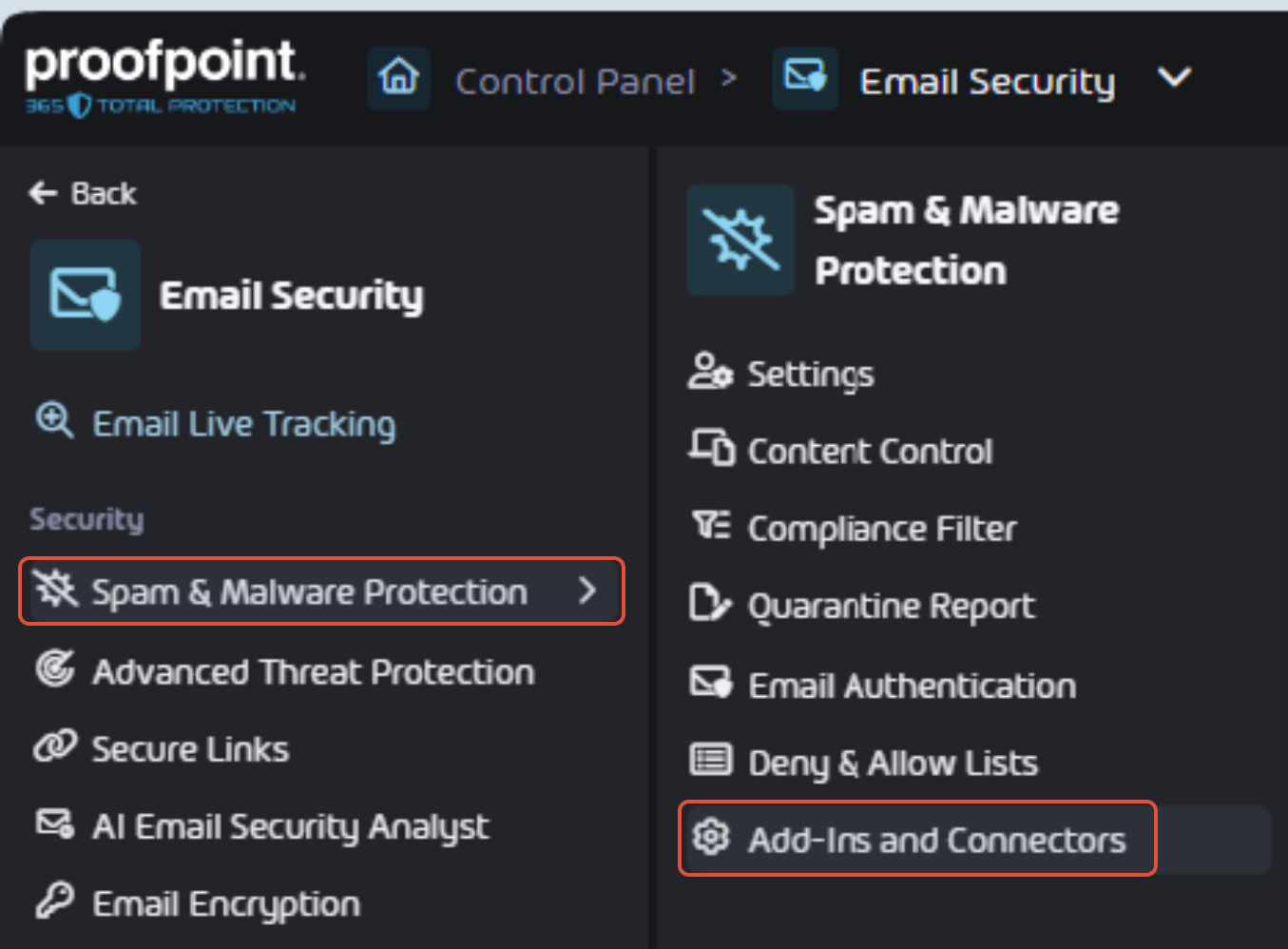
3- Next on the left hand panel, select SPAM & MALWARE PROTECTION - ADD-INS AND CONNECTORS.
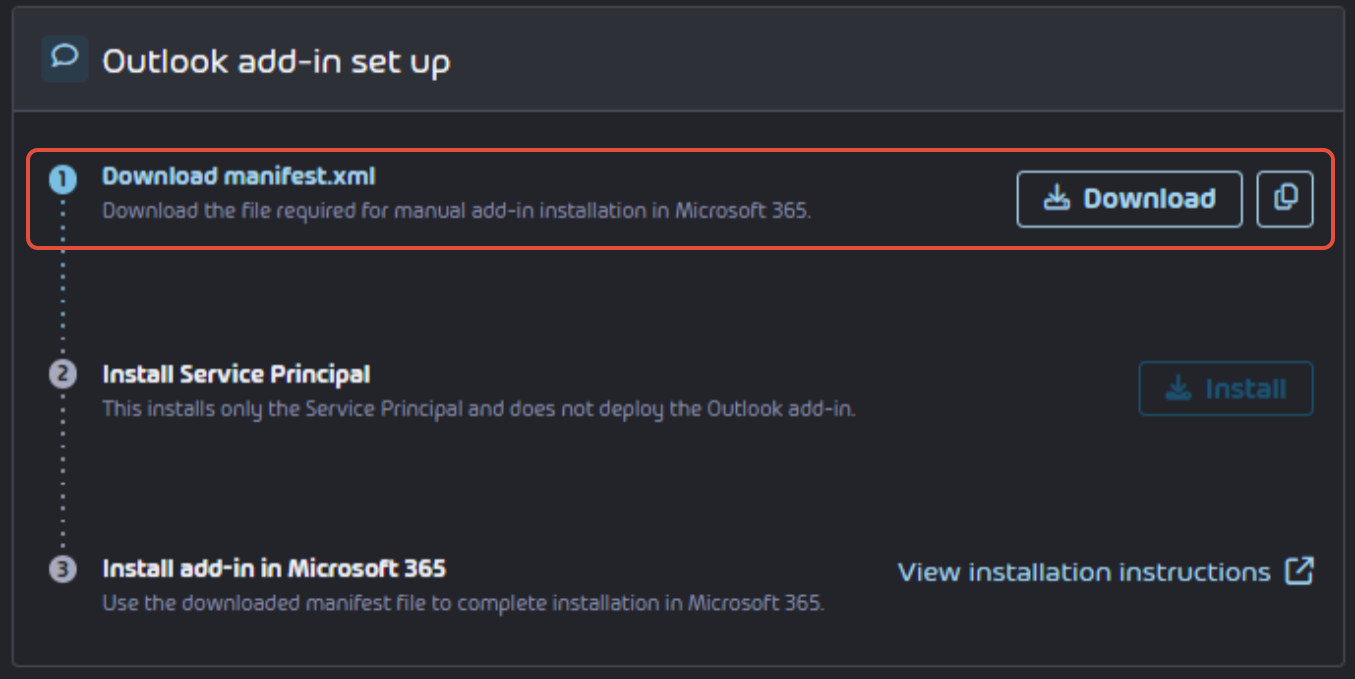
4- Under OUTLOOK ADD-IN SET UP follow step1 to DOWNLOAD MANIFEST.XML by clicking the DOWNLOAD button and save the file on your workstation.
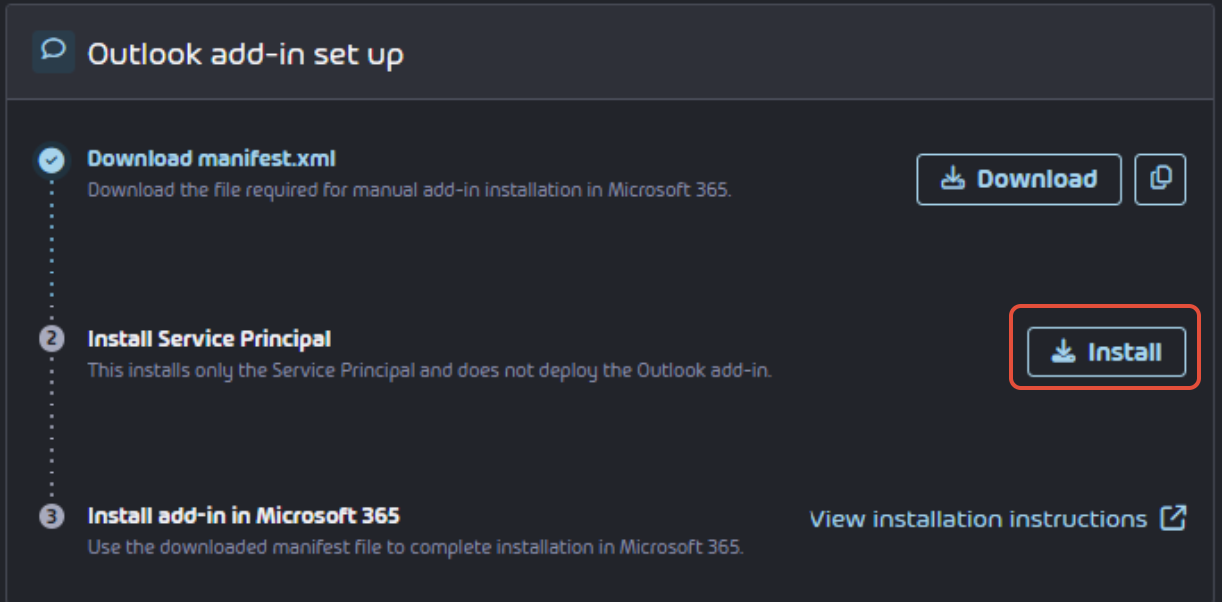
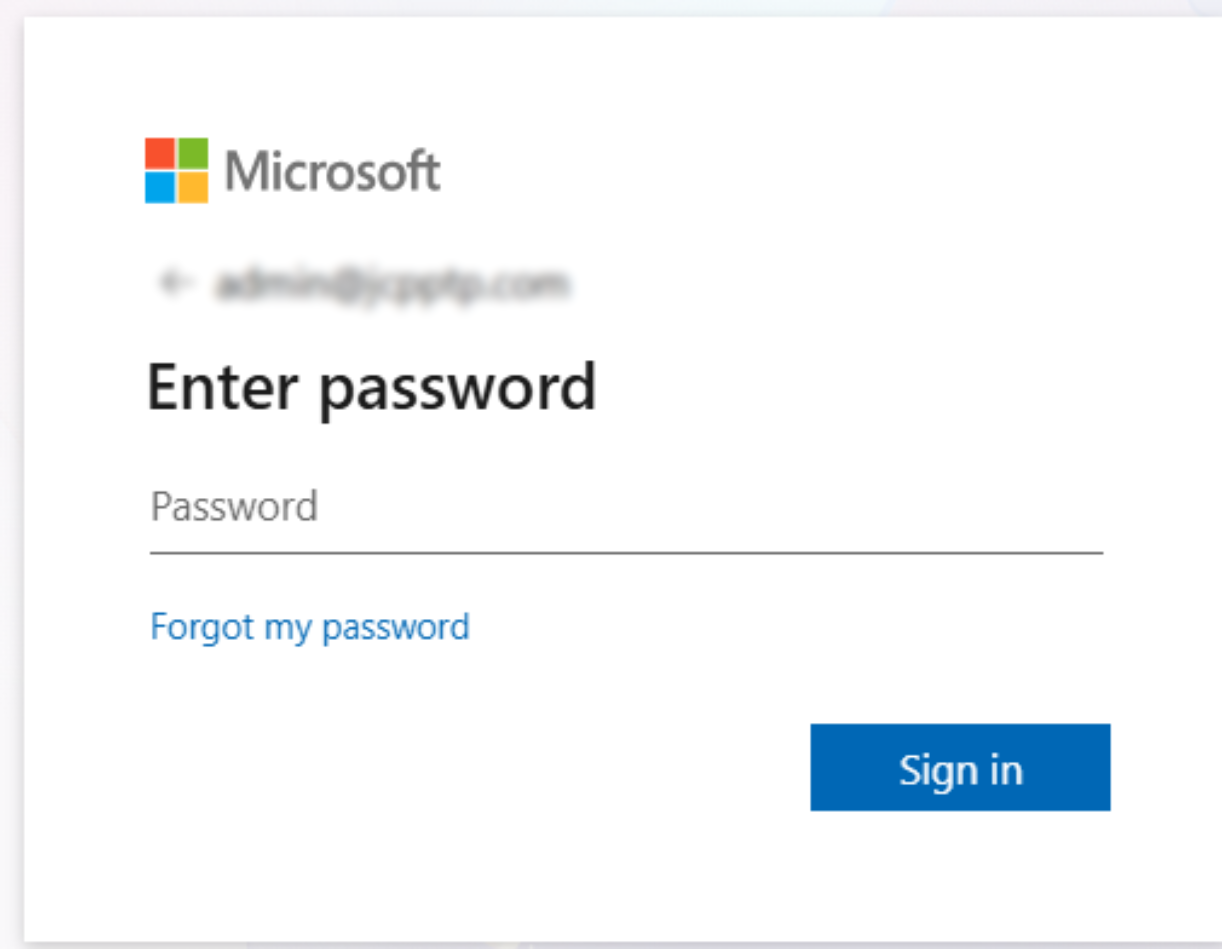
5- Then click on the INSTALL button. This will prompt you to login to your customers O365 tenant with there Global Administrator account.
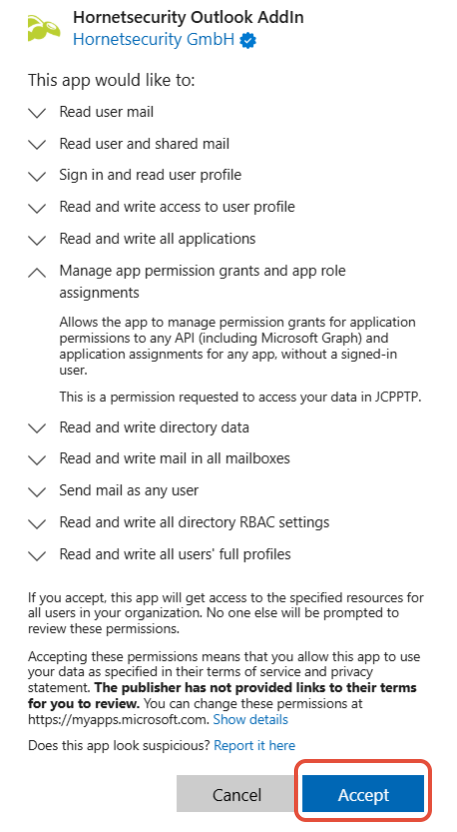
6- You are then presented with a new APP REGISTRATION creation to create a new Outlook Addin in O365. Simply click the ACCEPT button.
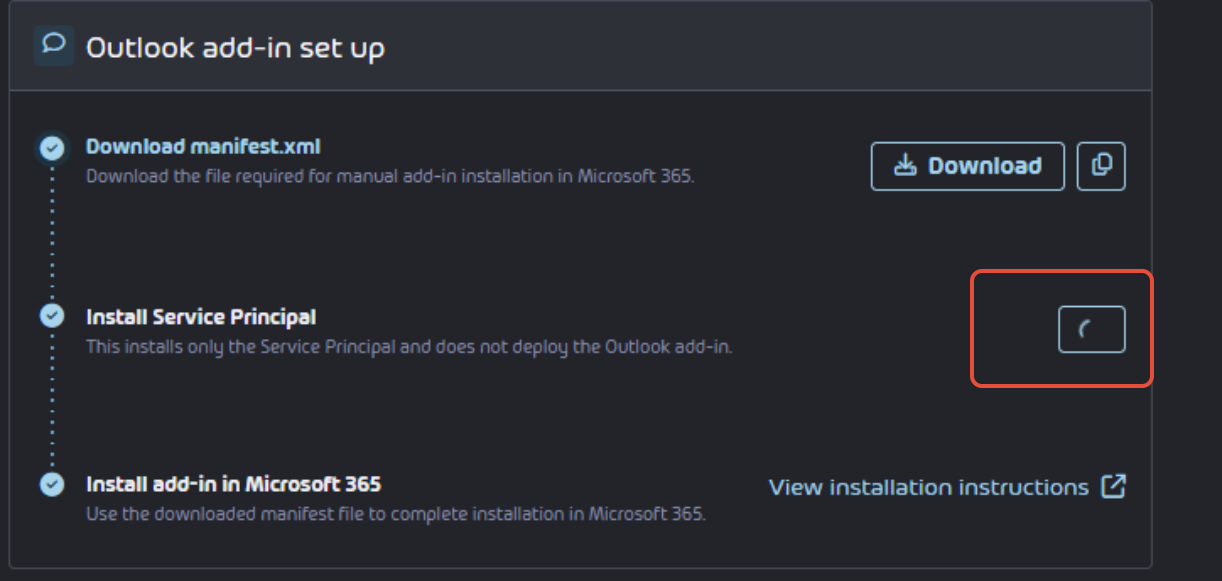
7- You are then returned to the Total Protection Outlook addin page where the app registration is being created.
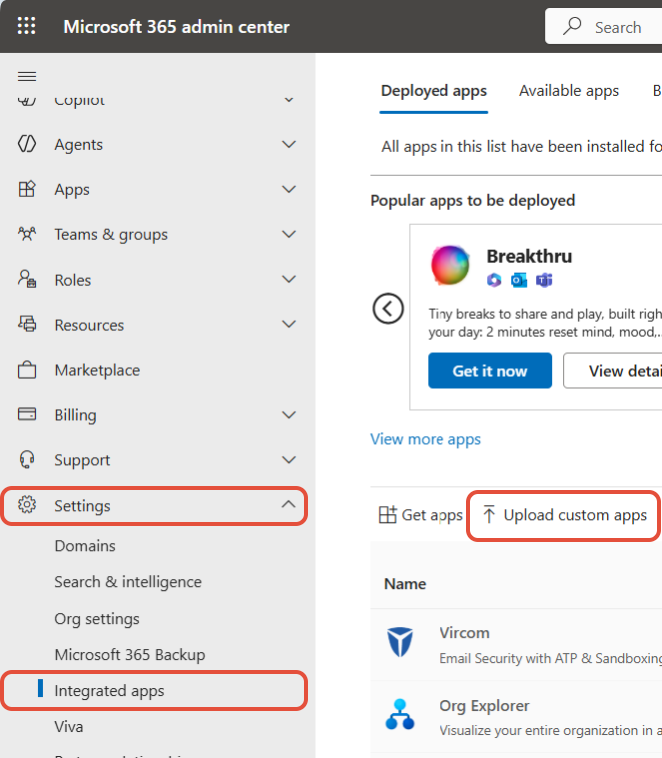
8- Once completed login to your customers O365 tenant at admin.cloud.microsoft.com and the left hand panel, click on SETTINGS - INTEGRATED APPS and select UPLOAD CUSTOM APP on the main page.
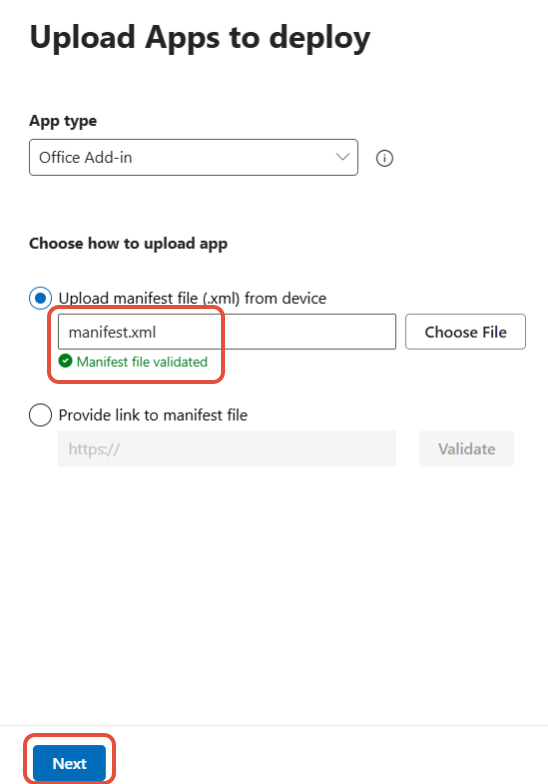
9- In the Upload App page, select OFFICE ADDIN in the drop down and select UPLOAD MANIFEST FILE (.XML) FROM DEVICE and click CHOOSE FILE.
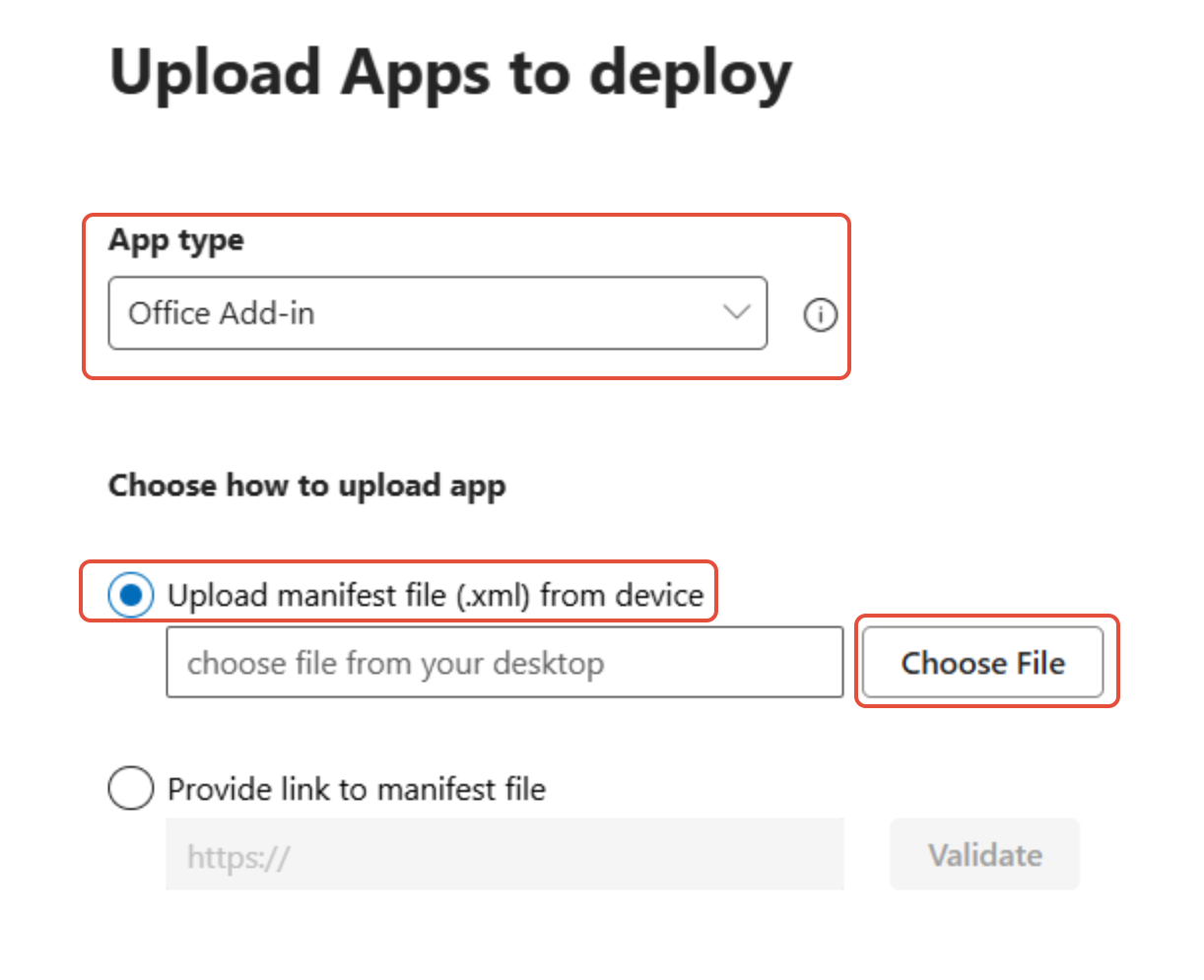
10- Then upload the MANIFEST.XML file you downloaded in STEP 4 above and click NEXT.
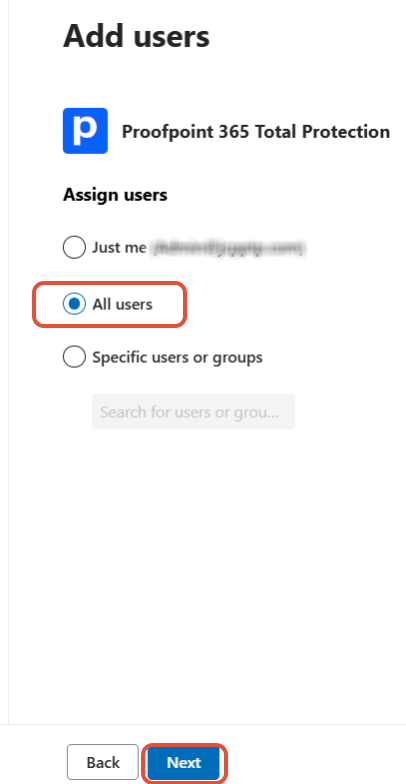
11- Next you can select to whom you would like to deploy the addin. Simply select ALL USERS and click NEXT.
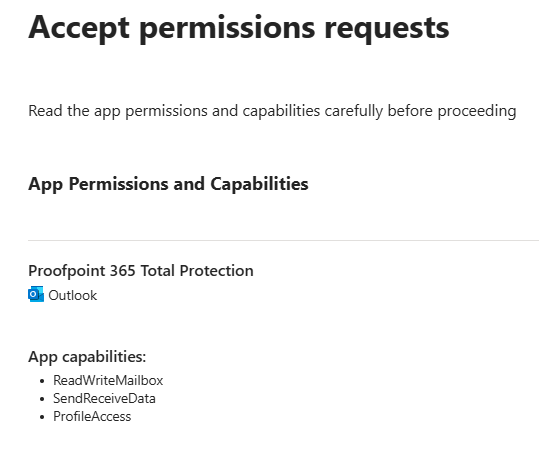
12- You are then displayed with the permissions being applied for the addin and the click NEXT.
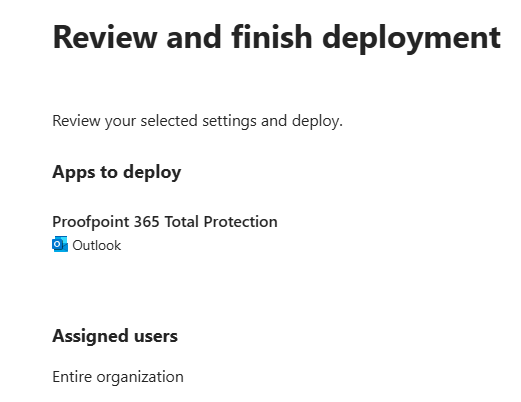
13- You are then present with a review page to look over and click FINISH DEPLOYMENT.
14- As the progress is completed you will be presented with a notice of 72 hours before the addon will appear in Outlook, then click on DONE.
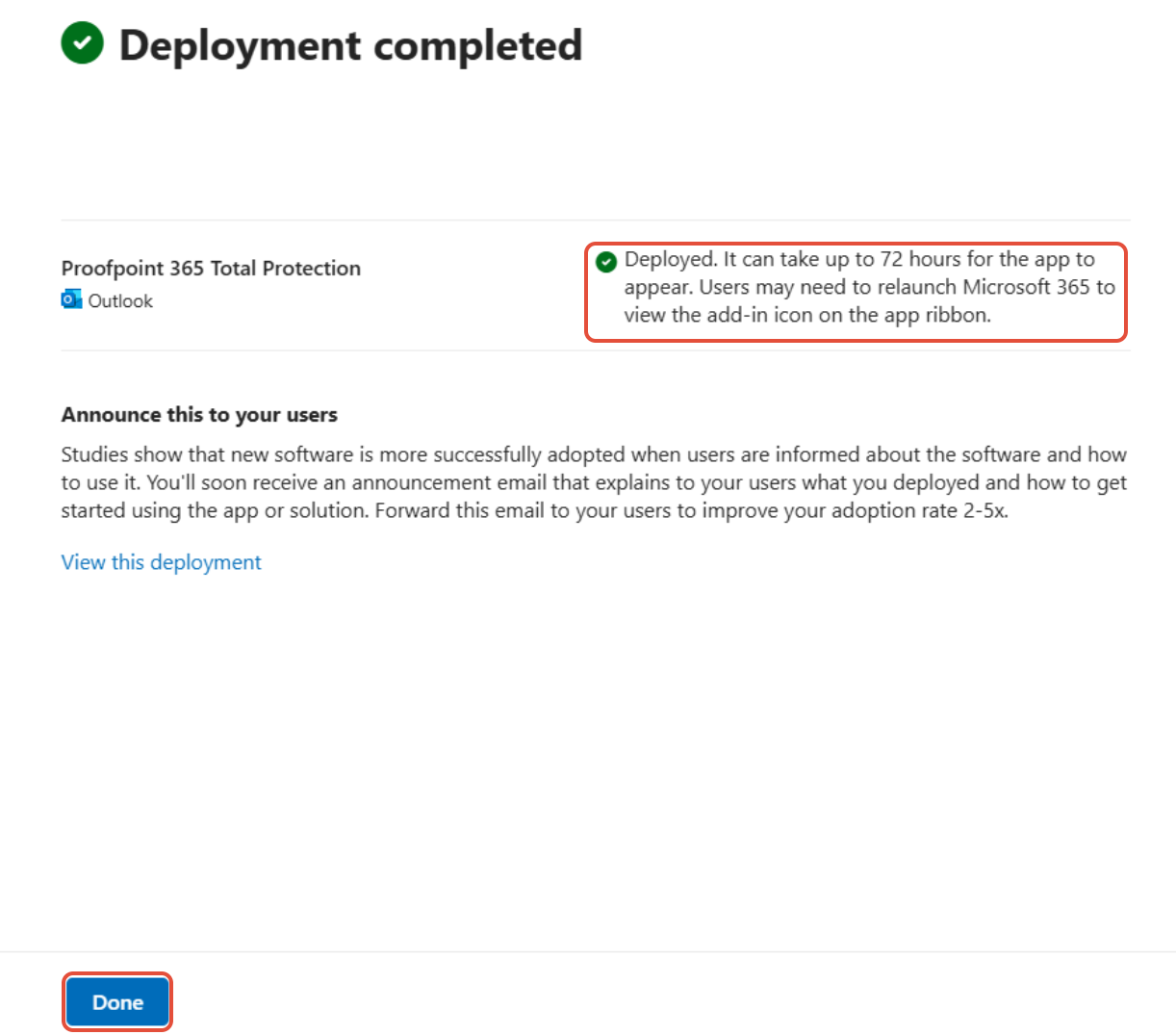
15- You have now completed the Total Protection addin for your O365 tenant.